
Last updated: May 11, 2026This article offers a comprehensive cursor ai ide biling guide and covers credit card payment options for developers.
Quick Answer: Cursor AI IDE accepts credit card payments through its billing portal, accessible via your account settings. The Pro plan costs $20/month and includes $20 in credits for premium AI model usage. You can add, update, or remove payment methods at any time without interrupting your subscription. Be aware that exceeding your included credits triggers overage charges billed at API rates to your card on file [2].
Key Takeaways
- Cursor offers four billing tiers: Free ($0), Pro ($20/month), Pro+ ($60/month), and Enterprise (custom pricing) [6]
- Adding a credit card takes about 30 seconds through Settings > Billing Portal > Add Card [1]
- The Pro plan’s $20 monthly credits yield roughly 225 Claude Sonnet requests or 550 Gemini requests [10]
- Using Auto mode for model selection avoids credit drain entirely — it pulls from unlimited completions [2]
- Overages beyond your credit allotment are billed at per-token API rates, which can spike costs fast [2]
- A June 2025 credit model change caused billing confusion; Cursor issued refunds from June 16 to July 4, 2025 [2]
- Enterprise plans offer pooled billing, eliminating per-developer card management [6]
- Cursor patched a critical Git vulnerability in version 2.5 (May 2026) that could affect secure billing workflows [7]

What Does Cursor AI IDE Cost in 2026?
Cursor’s pricing hasn’t changed in the last 60 days as of May 2026 [2]. Here’s the current breakdown:
| Plan | Monthly Cost | Credits Included | Best For |
|---|---|---|---|
| Hobby (Free) | $0 | 50 slow premium requests | Trying Cursor out |
| Pro | $20 | $20 in usage credits | Solo developers |
| Pro+ | $60 | $60 in usage credits (3x Pro) | Heavy daily users |
| Enterprise | Custom | Pooled credits + admin controls | Teams with compliance needs |
All paid plans bill monthly to the credit card you have on file. Annual billing options exist for Pro and Pro+ with a discount [5].
Common mistake: Many developers assume the $20 Pro plan gives unlimited AI access. It doesn’t. The $20 in credits covers premium model usage (Claude Sonnet, GPT-4o, etc.), but once depleted, you either wait for the next billing cycle or pay overages [2]. If you’re exploring other AI-powered tools for your workflow, understanding credit-based billing is becoming standard across the industry.
How Do You Add a Credit Card to Cursor IDE?
Adding a payment method is straightforward. Here’s the exact process, confirmed as of May 2026 [1]:
- Open Cursor and click the gear icon to access Settings
- Select “Billing” or navigate directly to your account dashboard at cursor.com
- Click “Manage Subscription” to open the billing portal (powered by Stripe)
- Click “Add Payment Method” and enter your credit card details
- Confirm — your card is now active for the current and future billing cycles
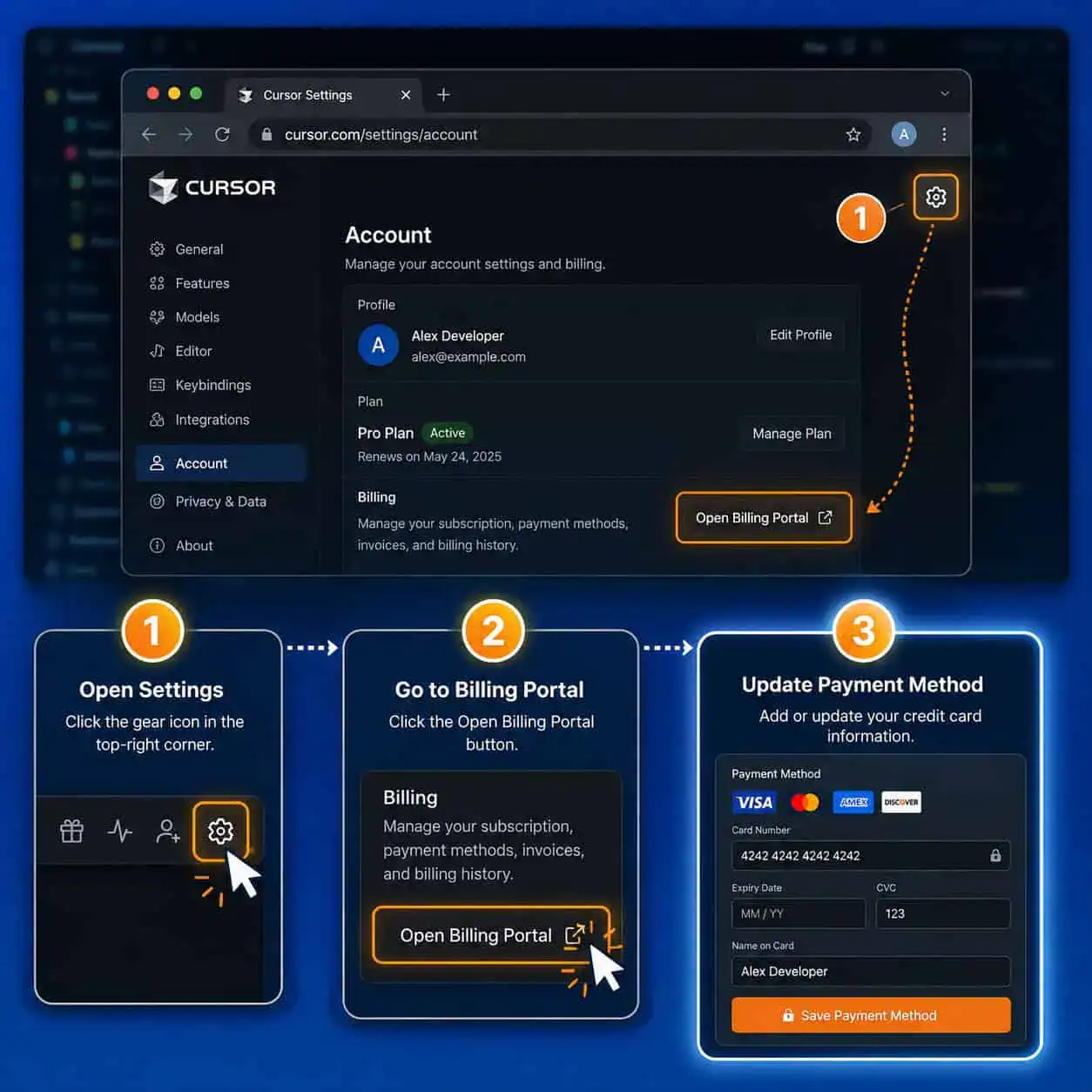
You can store multiple cards and set a default. Switching between cards doesn’t pause your subscription or reset your credit balance. If you’re upgrading from Free to Pro, you’ll be charged immediately and your credits become available right away [1].
Edge case: If your card is declined during a renewal, Cursor typically retries a few times before downgrading you to the Free tier. Keep your payment info current to avoid losing access to premium features mid-project.
For developers who also manage billing across design tools, the process is similar to how platforms like Figma handle subscriptions — check out this guide to Figma’s design workflows for comparison.
How Does the Credit System Actually Work?
This is where navigating Cursor AI IDE billing gets nuanced. Your monthly subscription includes a fixed dollar amount in credits. Those credits are consumed when you use premium AI models — and different models burn credits at very different rates [2].
Credit consumption examples on the Pro ($20/month) plan:
- Claude Sonnet 4: ~225 requests per month [10]
- Gemini 2.5 Pro: ~550 requests per month [10]
- Claude Opus 4.6: Significantly fewer requests (input tokens cost $30–$150 per million tokens) [2]
- Auto mode: Unlimited — doesn’t consume credits at all [2]
Decision rule: Choose Auto mode as your default if you want predictable billing. Switch to a specific premium model only when you need its particular strengths (like Claude Opus for complex multi-file refactoring). This single habit can cut your effective cost dramatically [2].
The credit system replaced an older request-based quota in mid-2025. That transition caused confusion and billing complaints, leading Cursor to issue refunds and improve their documentation [2]. The current system is more transparent, but you need to actively monitor your usage dashboard.
What Happens When You Exceed Your Credits?
Once your included credits run out, Cursor charges overages directly to your card at per-token API rates. These rates vary by model [2]:
- GPT-4o: Moderate per-token cost
- GPT-5: $1.25–$20 per million tokens depending on input vs. output [2]
- Claude Opus: Among the most expensive, easily $30+ per million tokens
This is the biggest billing surprise developers face. A heavy coding session using an expensive model can generate a meaningful overage charge before you realize your credits are gone.
How to protect yourself:
- Check your credit balance in the Cursor dashboard before starting intensive work
- Set up billing alerts if available in your Stripe billing portal
- Use Auto mode for routine tasks, reserving premium models for specific needs
- Consider Pro+ ($60/month) if you consistently exceed Pro credits — the 3x credit allotment often costs less than overages [6]
If you’re building projects that involve AI-powered content optimization, these overage costs can compound quickly when you’re iterating on code generation.
How Does Cursor Billing Compare to Competitors?
Understanding Cursor’s billing model matters most when you see what alternatives charge. Here’s an honest comparison:
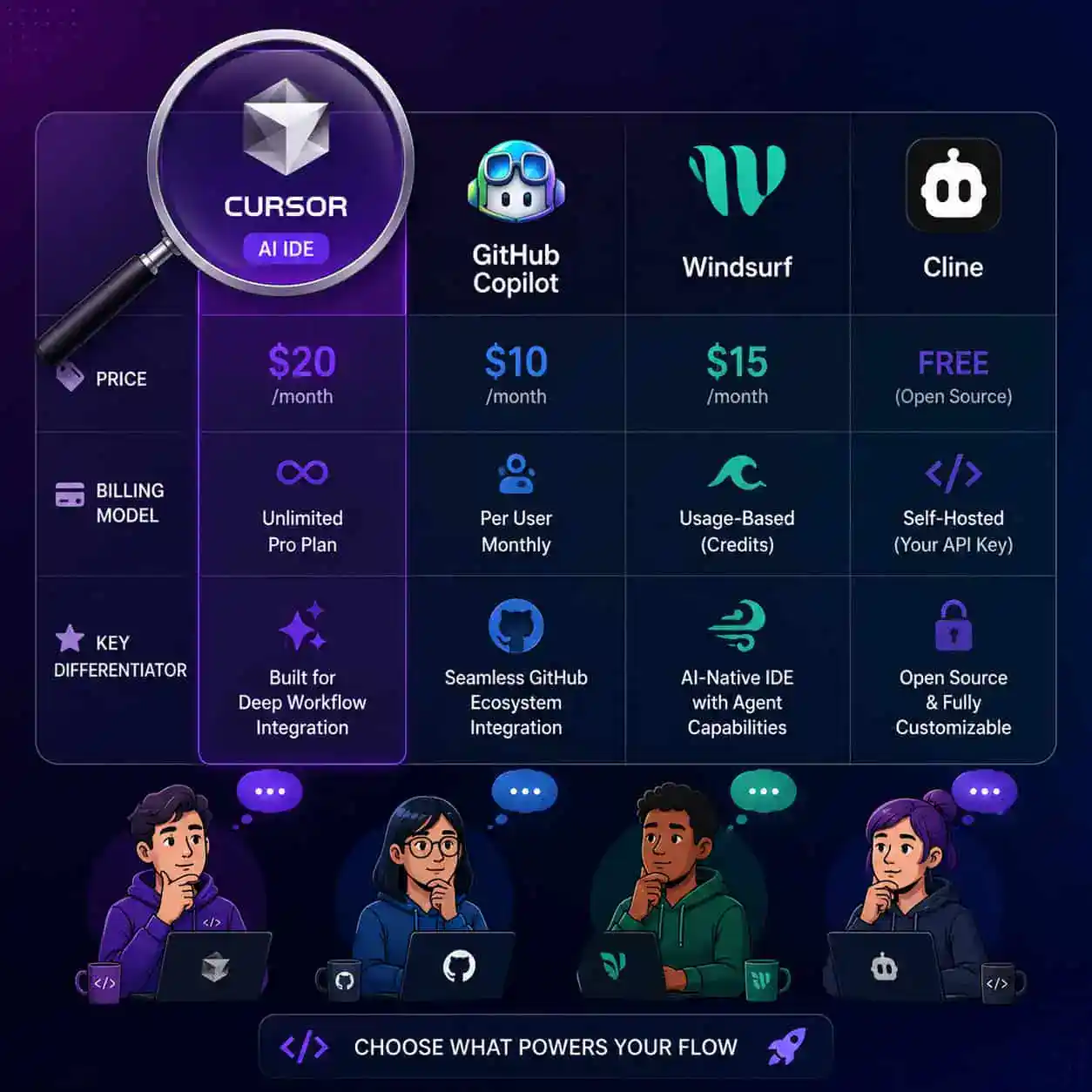
| Tool | Monthly Cost | Billing Model | IDE Type | Key Difference |
|---|---|---|---|---|
| Cursor Pro | $20 | Credits + overages | Full IDE (VS Code fork) | Most features, overage risk |
| GitHub Copilot | $10–$39 | Flat subscription | Extension (any editor) | Predictable cost, no overages |
| Windsurf | $15–$20 | Quota-based | Full IDE | Generous free tier, no card needed for basics |
| Cline | $0 (BYOK) | Pay API directly | VS Code extension | No subscription, full cost transparency |
| Claude Code | $17–$200 | Token-based | Terminal only | 1M token context, no IDE integration |
Choose Cursor if you want an all-in-one AI-native IDE with agent mode (up to 8 parallel agents) and don’t mind monitoring credit usage [10].
Choose GitHub Copilot if you want predictable monthly costs and already use VS Code, JetBrains, or another editor you don’t want to leave.
Choose Cline if you want zero subscription overhead and are comfortable managing your own API keys.
Choose Windsurf if you’re budget-conscious and want a capable free tier without entering credit card information upfront.
For developers also working with no-code website builders, the billing model comparison is relevant — many of these platforms use similar tiered subscription approaches.
What Security Considerations Apply to Cursor Billing?
In early May 2026, Cursor patched a critical remote code execution (RCE) vulnerability in its AI agent feature. The flaw could be triggered through malicious Git repositories, though no in-the-wild exploits were reported [7]. This matters for billing because:
- A compromised IDE session could theoretically trigger excessive API calls, burning through credits
- Enterprise users should ensure they’re running Cursor version 2.5 or later
- The Opsera partnership (announced May 8, 2026) adds DevSecOps compliance analytics for Teams and Enterprise billing tiers [7]
Practical steps:
- Keep Cursor updated to the latest version
- Don’t clone untrusted repositories in agent mode
- Review your billing dashboard weekly for unexpected charges
- Use Enterprise pooled billing if your team needs audit trails
If you’re integrating AI tools into WordPress or other platforms, similar security awareness applies — see this guide on AI chatbot integration for WordPress for related security best practices.
What Are the Most Common Billing Mistakes Developers Make?
Based on community feedback and analyst reports, these are the billing pitfalls I see most often:
Leaving a premium model selected during casual browsing. Every Tab completion and inline suggestion with Claude Opus costs credits. Switch to Auto mode when you’re not doing focused work [2].
Ignoring the credit dashboard. Cursor shows your remaining balance, but many developers never check it until they see an unexpected charge.
Not understanding the Free-to-Pro transition. The Free tier’s 50 slow premium requests reset monthly. Some developers add a card and upgrade mid-cycle, expecting a prorated credit — billing starts immediately at the full monthly rate.
Running multiple agent sessions simultaneously. Pro supports up to 8 parallel agents [10]. Each one consumes credits independently. A 30-minute multi-agent session can use 10x the credits of a single-agent session.
Assuming annual billing saves money without checking. Annual plans offer a discount, but if you’re unsure about long-term usage, monthly billing gives you flexibility to downgrade or cancel.
Developers working across multiple tools — from Figma-to-code workflows to AI IDEs — should track all their SaaS subscriptions in one place to avoid billing surprises.
Conclusion
Navigating Cursor AI IDE billing comes down to three actions: choose the right plan for your usage intensity, use Auto mode as your default to avoid unnecessary credit drain, and check your dashboard weekly.
Your next steps:
- Audit your current usage. Log into Cursor’s billing portal and review your credit consumption over the past month.
- Switch to Auto mode for all routine coding tasks. Reserve premium models for specific, high-value work.
- Set a calendar reminder to check your credit balance mid-cycle, especially if you’re on the Pro plan.
- Evaluate whether Pro+ makes sense. If you’ve hit overages twice in the past three months, the $60/month plan with 3x credits will likely save you money [6].
- Keep Cursor updated to version 2.5+ for the latest security patches [7].
Credit-based billing for AI coding tools isn’t going away. The developers who manage it well will spend less while getting more from these tools — and that starts with understanding exactly what you’re paying for.
FAQ
Can I use Cursor AI IDE without a credit card? Yes. The Hobby (Free) tier requires no payment method and includes 50 slow premium requests per month. You only need a card to upgrade to Pro or higher [5].
What payment methods does Cursor accept? Cursor processes payments through Stripe, which supports major credit cards (Visa, Mastercard, American Express) and some debit cards. PayPal and cryptocurrency are not currently supported [1].
Will I be charged automatically when my credits run out? Yes. If you exceed your included credits, Cursor bills overages to your card at per-token API rates. There is no automatic spending cap unless you configure one [2].
Can I get a refund if I’m overcharged? Cursor issued refunds during the June–July 2025 credit model transition. For current billing disputes, contact Cursor support through the billing portal. Refund policies may vary [2].
Is the Pro+ plan worth the extra $40/month? If you consistently use more than $20 in credits per month, Pro+ at $60 gives you 3x the credits. Run the math on your actual usage — two months of $15+ in overages means Pro+ pays for itself [6].
How do Enterprise plans handle billing differently? Enterprise plans offer pooled credits across your team, centralized billing (one invoice instead of per-developer cards), admin controls, and compliance analytics through the Opsera integration [7].
Does switching plans mid-cycle affect my credits? Upgrading from Pro to Pro+ takes effect immediately, and you receive the higher credit allotment. Downgrading typically takes effect at the next billing cycle.
Can I use Cursor on multiple devices with one subscription? Yes. Your subscription is tied to your account, not a specific device. You can use Cursor on your desktop and laptop with the same billing plan.
What’s the cheapest way to use Cursor’s premium AI features? Use Auto mode for everything except tasks that specifically require a premium model. Auto mode provides unlimited completions without consuming credits [2].
How do I cancel my Cursor subscription? Go to Settings > Billing > Manage Subscription in the Stripe portal, then click Cancel. You’ll retain access until the end of your current billing period.
References
[1] Watch – https://www.youtube.com/watch?v=8Mz2zSWIzc8 [2] What Happened To Cursor Pricing 2026 Guide 5 Cost Cutting Tips – https://www.finout.io/blog/what-happened-to-cursor-pricing-2026-guide-5-cost-cutting-tips [5] Cursor Ai Pricing Plans Guide 2026 – https://www.nxcode.io/resources/news/cursor-ai-pricing-plans-guide-2026 [6] Cursor Pricing Explained – https://www.vantage.sh/blog/cursor-pricing-explained [7] Cursor News May 2026 – https://blog.mean.ceo/cursor-news-may-2026/ [10] Cursor Ai Review 2026 Features Pricing Worth It – https://www.nxcode.io/resources/news/cursor-ai-review-2026-features-pricing-worth-it