Last updated: May 7, 2026
Quick Answer: N8N is a source-available, AI-native workflow automation platform that connects apps, services, and AI models through a visual node-based editor. To get the most out of it, you need to understand its core architecture, choose the right AI integrations, chain models effectively, and build in human oversight. This guide covers all of that in practical, step-by-step terms.
Key Takeaways
- N8N uses a visual canvas where “nodes” represent triggers, actions, and logic, making it accessible without deep coding skills [2]
- It runs LangChain under the hood, enabling chatbots, summarization, and Q&A systems directly inside workflows [2]
- You can integrate GPT-4/5, Hugging Face, Google Vertex AI, and custom APIs through a “Bring Your Own Model” approach [3]
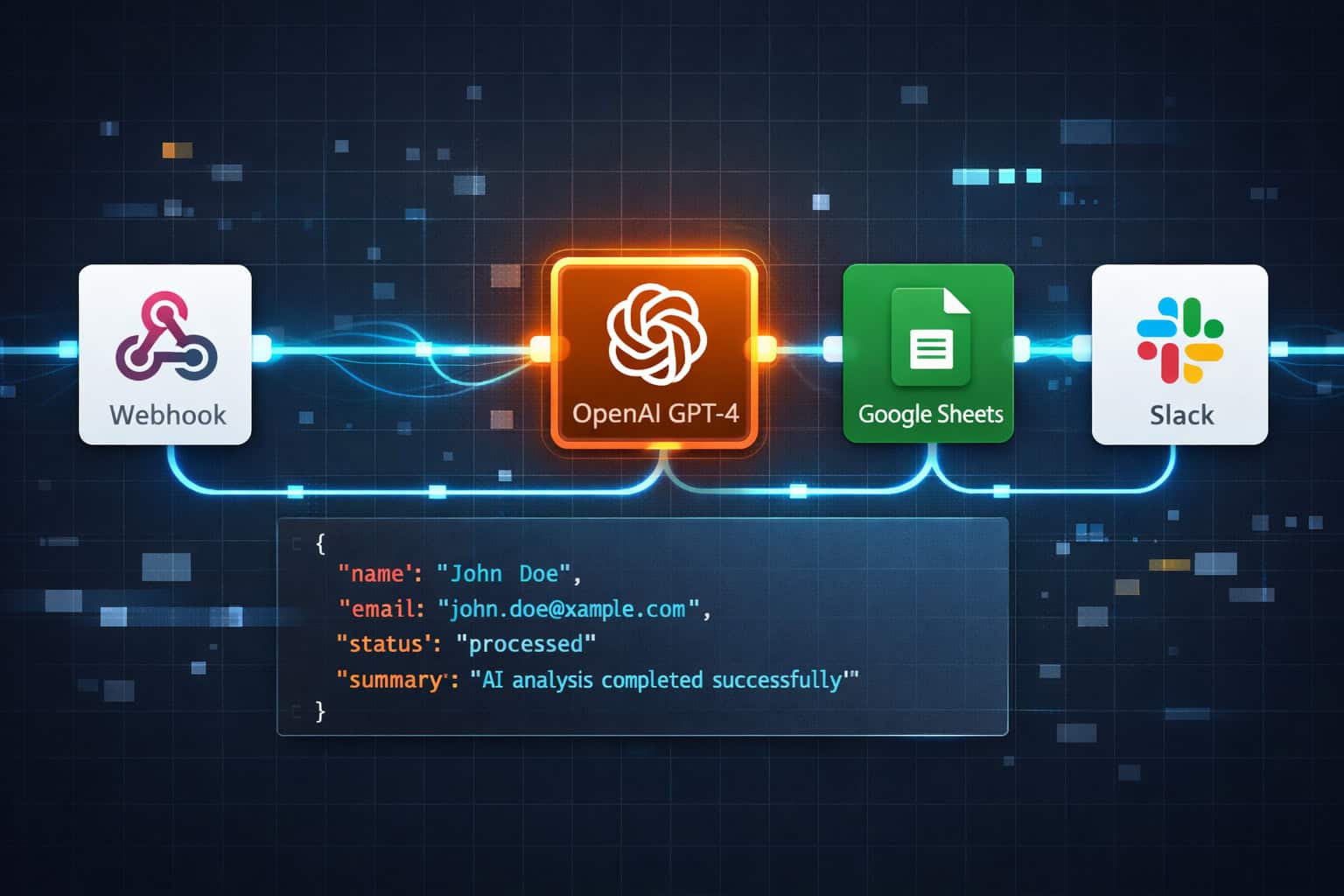
- AI model chaining lets you pass output from one model into another, for example generating content with OpenAI, then checking SEO, then scheduling automatically [3]
- Human-in-the-loop approval steps can be added to any workflow to prevent unsupervised AI actions [4]
- Custom JavaScript, Python, or Shell script nodes handle edge cases that visual nodes can’t cover [3]
- Vector database integration supports embedding storage and retrieval for memory-aware AI agents [2]
- The biggest optimization mistakes are over-complicating early workflows, skipping error handling, and ignoring execution logs
What Is N8N and Why Does It Matter for AI Automation?
N8N is a source-available workflow automation platform built specifically for connecting apps and embedding AI into business processes. Unlike many automation tools that treat AI as a bolt-on feature, n8n was designed from the ground up to support AI-native workflows [2].
What makes it different from tools like Zapier or Make:
- Self-hostable (you control your data)
- Supports custom code nodes (JavaScript, Python, Shell)
- Built-in LangChain integration for advanced AI tasks
- “Bring Your Own Model” flexibility across multiple AI providers
- Visual editor with branching logic, loops, and conditional paths
N8N is best suited for developers, technical marketers, and operations teams who need more control than a point-and-click tool offers but don’t want to build automation infrastructure from scratch. If you’re a non-technical user looking for something with zero learning curve, simpler tools may serve you better initially.
For teams already working with AI-powered content or design workflows, pairing n8n with a broader automation strategy makes sense. You can explore more automation resources in the Automation Archives on WebAiStack.
How Does N8N’s Core Architecture Work?
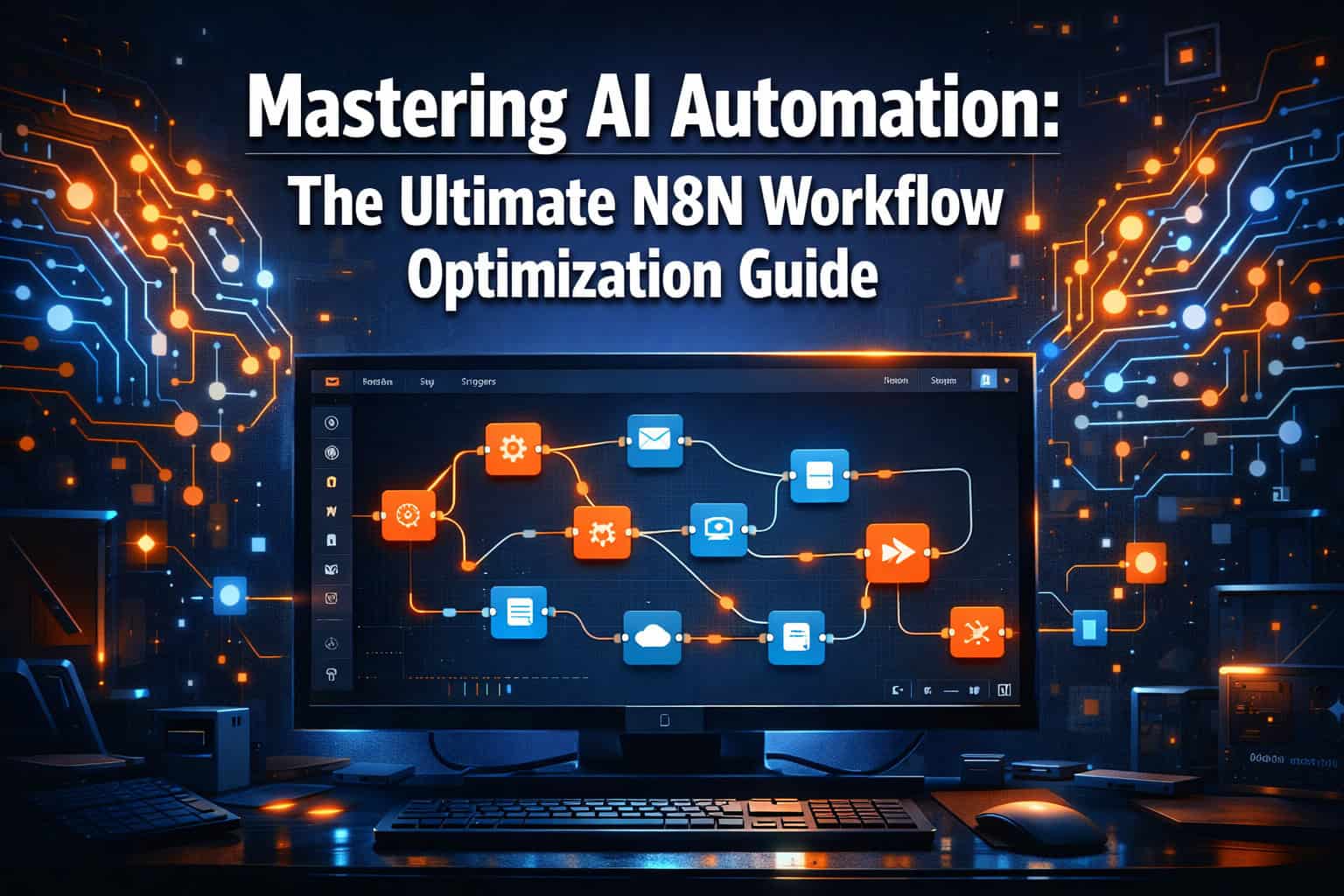
Every n8n workflow is built from nodes connected on a visual canvas. Each node performs one action: fetching data, transforming it, calling an API, or triggering an AI model. Understanding this structure is the foundation of Mastering AI Automation: The Ultimate N8N Workflow Optimization Guide.
The three node types you’ll use most:
| Node Type | What It Does | Example |
|---|---|---|
| Trigger nodes | Start the workflow | Webhook, Schedule, Email |
| Action nodes | Do something with data | HTTP Request, Google Sheets, Slack |
| AI/Logic nodes | Process or transform | OpenAI, LangChain Agent, Code |
How data flows:
- A trigger fires (for example, a new form submission arrives via webhook)
- Data passes through action nodes in sequence
- Each node receives the output of the previous one as input
- Branches and conditions split the flow based on logic you define
- Final nodes deliver the result (send email, update database, post to Slack)
Common mistake: Beginners often connect nodes linearly when they should use parallel branches. If two actions don’t depend on each other, run them simultaneously to cut execution time.
Which AI Models and Integrations Does N8N Support?
N8N supports a wide range of AI providers through its “Bring Your Own Model” (BYOM) approach, meaning you’re not locked into a single vendor [3].
Supported AI providers include:
- OpenAI (GPT-4, GPT-4o, and newer models)
- Anthropic Claude
- Google Vertex AI and Gemini
- Hugging Face (open-source models)
- Stability AI (image generation)
- Custom API-based models via HTTP Request nodes
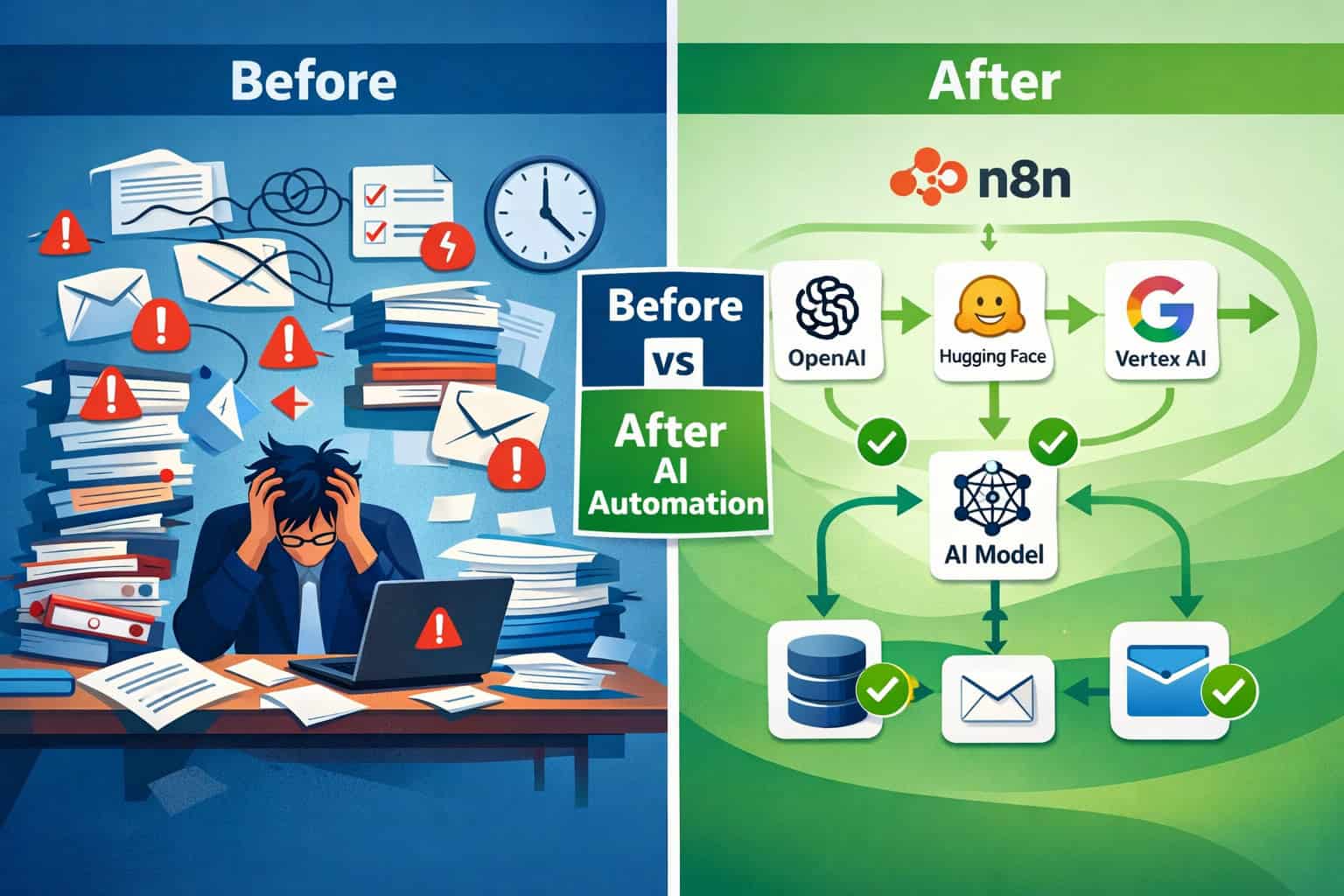
N8N uses LangChain under the hood, which gives you access to agents, chains, memory, and tool-use patterns without writing LangChain code yourself [2]. This means you can build a chatbot that remembers conversation history, a document Q&A system, or a summarization pipeline entirely through the visual editor.
Multimodal support is also available. For example, you can build a workflow that validates passport photos by sending an image to a vision-capable LLM and checking whether the portrait meets specific criteria [2]. This kind of task would require significant custom code in most other tools.
If you’re also using AI tools for content creation, our comprehensive guide to AI-powered content generation tools covers complementary platforms worth knowing.
How Do You Build Your First N8N AI Workflow?
Building your first workflow is straightforward if you follow a clear sequence. Here’s a practical starting point for anyone working through Mastering AI Automation: The Ultimate N8N Workflow Optimization Guide for the first time [6].
Step-by-step: Build a basic AI content workflow
- Create a new workflow in the n8n canvas
- Add a trigger node — use “Schedule Trigger” for time-based runs or “Webhook” for event-based ones
- Add an HTTP Request node to pull source data (for example, fetch RSS feed items)
- Add an OpenAI node — configure it with your API key, select the model, and write your prompt using expressions that reference the previous node’s output
- Add a conditional node to check output quality (for example, check if the response is over 100 words)
- Add an output node — send to Google Sheets, Notion, Slack, or email
- Test with a single execution before activating
Expressions are key. N8N uses {{ $json.fieldName }} syntax to reference data from previous nodes. Learning this early saves significant debugging time later.
Edge case to watch: If your AI node returns an empty response (which happens when rate limits are hit), add an “IF” node after it to catch empty strings before they propagate downstream and corrupt your output data.
What Is AI Model Chaining and How Do You Use It in N8N?
AI model chaining means the output of one AI model becomes the input for another, creating a pipeline where each model handles a specific task [3].
A real-world example chain:
- OpenAI GPT-4 generates a draft blog post from a topic keyword
- A second OpenAI call (or a different model) rewrites the draft for tone and readability
- DataForSEO API checks keyword density and readability score
- A conditional node routes the post for human review if the SEO score is below a threshold
- Buffer API schedules the approved post for publishing
This kind of pipeline would take hours manually. In n8n, once built, it runs automatically for every new keyword you feed it.
When to use chaining vs. a single prompt:
- Use chaining when each step requires a different model, tool, or data source
- Use a single prompt when the task is self-contained and one model handles it well
- Chain when you need validation between steps (for example, generate then fact-check)
For teams building AI-assisted content workflows, pairing n8n chains with AI-powered content optimization practices can significantly improve output quality.
How Do You Add Human Oversight to N8N Workflows?
Human-in-the-loop (HITL) steps are one of n8n’s most practical features for production AI workflows. They let you pause automation and require a human decision before proceeding [4].
Why this matters: AI models make mistakes. Without oversight, a single bad output can trigger a chain of automated actions (sending emails, publishing content, updating records) before anyone notices.
How to implement HITL in n8n:
- Use the “Wait” node to pause execution until a webhook is called (for example, a reviewer clicks “Approve” in a form)
- Send a Slack or email notification with the AI’s output and two action links (Approve / Reject)
- Route approved items forward; rejected items to a revision queue or human editor
- Log all decisions to a Google Sheet or Airtable for audit purposes
Decision rule: Add HITL whenever the workflow produces customer-facing output, modifies financial records, or sends communications. For internal data processing with low stakes, fully automated runs are fine.
This approach mirrors best practices in advanced WordPress automation strategies where staged publishing with review gates prevents errors from reaching live sites.
What Are the Most Effective N8N Workflow Optimization Techniques?
Optimization in n8n means faster execution, fewer errors, and workflows that scale without breaking. This is where Mastering AI Automation: The Ultimate N8N Workflow Optimization Guide moves from setup to performance.

Top optimization techniques:
1. Use sub-workflows for reusable logic Instead of duplicating nodes across workflows, create a sub-workflow for common tasks (like formatting data or calling a specific API) and call it with the “Execute Workflow” node. This keeps things maintainable.
2. Add error handling nodes Every workflow should have an error trigger connected to a notification node. When something breaks at 2am, you want a Slack message, not silence.
3. Batch process where possible If you’re processing 500 rows from a spreadsheet, use the “Split In Batches” node to process them in groups of 10-50. This prevents memory issues and API rate limit errors.
4. Use custom code nodes for edge cases When a visual node can’t handle a specific data transformation, drop in a JavaScript or Python code node [3]. This is faster than building a workaround with multiple nodes.
5. Monitor execution logs actively N8N’s execution history shows every run, its status, and the data at each node. Review these regularly in the first week after launching a new workflow.
6. Pin test data During development, pin sample data to nodes so you can test downstream logic without re-triggering the entire workflow from the start.
| Optimization | Impact | Effort |
|---|---|---|
| Sub-workflows | High (maintainability) | Medium |
| Error handling | High (reliability) | Low |
| Batch processing | High (scalability) | Low |
| Custom code nodes | Medium (flexibility) | Medium |
| Execution log review | Medium (debugging) | Low |
What Are Common N8N Mistakes and How Do You Avoid Them?
Even experienced builders run into the same problems. Knowing these ahead of time saves hours of debugging.
Mistake 1: Building complex workflows before testing simple ones Start with the smallest possible version of your workflow. Get one trigger and one action working, then add complexity. Debugging a 30-node workflow is exponentially harder than debugging a 5-node one.
Mistake 2: Hardcoding credentials in nodes Always use n8n’s built-in credential manager. Hardcoded API keys break when you share or export workflows and create security risks.
Mistake 3: Ignoring rate limits OpenAI, Google, and most APIs have rate limits. If your workflow fires 100 API calls in a second, it will fail. Add “Wait” nodes or use batch processing to space out calls.
Mistake 4: Not versioning workflows N8N doesn’t have built-in version control. Export your workflow JSON to a Git repository before making significant changes. This is your undo button.
Mistake 5: Skipping the “active” toggle test A workflow that works in test mode doesn’t always behave the same when activated. Always run a live test with real data before declaring a workflow production-ready.
For teams also managing automated publishing to WordPress or social platforms, the same principles apply, as covered in our guide on how to auto-share WordPress blog posts to social media.
How Does N8N Compare to Other Automation Platforms?
N8N sits in a specific position in the automation market. It’s more technical than Zapier but more accessible than building custom code from scratch.
| Feature | N8N | Zapier | Make (Integromat) |
|---|---|---|---|
| Self-hostable | Yes | No | No |
| Custom code nodes | Yes | Limited | Limited |
| AI-native features | Yes (LangChain) | Basic | Basic |
| Visual editor | Yes | Yes | Yes |
| Pricing model | Free (self-hosted) / Paid cloud | Per-task pricing | Per-operation pricing |
| Learning curve | Medium | Low | Medium |
| BYOM AI support | Yes | No | No |
Choose n8n if:
- You need to self-host for data privacy or compliance reasons
- Your workflows involve AI model chaining or custom AI integrations
- You have a developer on the team who can handle occasional code nodes
Choose Zapier if:
- You need the fastest setup with no technical involvement
- Your use cases are simple app-to-app triggers with no AI complexity
Choose Make if:
- You want a middle ground with a visual interface and moderate complexity support
For teams exploring no-code and low-code options more broadly, the best no-coding website design software platforms guide provides useful context on the wider ecosystem.
How Do You Scale N8N Workflows for Production Use?
Scaling means your workflows handle more volume, more complexity, and more failure scenarios without manual intervention.
Scaling checklist:
- Move from n8n cloud to self-hosted if you’re processing sensitive data or high volumes
- Set up a PostgreSQL database backend (instead of SQLite) for better performance
- Use queue mode for high-volume workflows to distribute execution across workers
- Implement webhook authentication to prevent unauthorized triggers
- Set execution timeouts to prevent runaway workflows from consuming resources
- Archive or delete old execution logs regularly to keep the database lean
- Document every workflow with a description node explaining its purpose and owner
On infrastructure: If you’re running n8n on a VPS or cloud server, allocate at least 2GB RAM for moderate workloads. For workflows processing hundreds of AI calls per hour, 4-8GB is more appropriate (estimate based on typical LLM response sizes; actual requirements vary by workflow complexity).
Teams building AI-integrated web platforms may also find value in connecting n8n with CMS workflows, similar to patterns described in our guide to AI plugins for WordPress automation.
FAQ
What is n8n used for? N8N is used to automate repetitive tasks by connecting apps and services through a visual workflow editor. It’s particularly strong for AI-integrated workflows, including content generation, data processing, chatbot building, and multi-step approval processes [2].
Is n8n free to use? Yes, n8n is free to self-host under its source-available license. A paid cloud version is also available for teams who don’t want to manage their own infrastructure. The self-hosted version has no per-task fees.
Do I need to know how to code to use n8n? Basic workflows require no coding. The visual editor handles most use cases. However, complex data transformations and edge cases often benefit from JavaScript or Python code nodes, so some coding familiarity helps [3].
How does n8n handle AI model integration? N8N integrates AI models through dedicated nodes for providers like OpenAI, Anthropic, and Google Vertex AI, plus a generic HTTP Request node for any API. It uses LangChain internally to support agents, memory, and chaining [2].
What’s the difference between n8n and Zapier? N8N is self-hostable, supports custom code, and has native AI/LangChain integration. Zapier is easier to start with but has no self-hosting option, limited AI support, and per-task pricing that scales up quickly [3].
Can n8n workflows run on a schedule? Yes. The Schedule Trigger node lets you run workflows at any interval, from every minute to monthly. You can also combine schedule triggers with conditional logic to run only under specific conditions.
How do I handle errors in n8n workflows? Add an “Error Trigger” workflow that activates whenever another workflow fails. Connect it to a Slack or email notification node so you’re alerted immediately. Also use “IF” nodes to check for empty or malformed data between steps.
What is the “Bring Your Own Model” approach in n8n? BYOM means you connect your own AI provider credentials rather than using a built-in model. N8N supports this for OpenAI, Hugging Face, Google Vertex AI, Stability AI, and any API-accessible model [3].
Can n8n process images and documents? Yes. N8N supports multimodal LLMs, so you can send images to vision-capable models for analysis. It also handles PDFs, CSVs, and other file types through dedicated nodes and HTTP requests [2].
How many nodes can a single n8n workflow have? There’s no hard limit, but workflows with more than 50-100 nodes become difficult to maintain. Use sub-workflows to keep individual canvases readable and modular.
Is n8n suitable for enterprise use? Yes, with the right setup. Enterprise use requires self-hosting with a PostgreSQL backend, queue mode for scaling, proper credential management, and workflow documentation. N8N’s source-available model also allows code audits, which many enterprise compliance teams require.
How do I share workflows with my team? Export workflows as JSON files and share them, or use n8n’s built-in sharing features on the cloud version. For teams, a shared Git repository for workflow JSON files provides version control and collaboration history.
Conclusion
N8N gives teams a genuine path to production-grade AI automation without building infrastructure from scratch. The key is starting simple, testing thoroughly, and adding complexity only when the foundation is solid.
Actionable next steps:
- Install n8n — use the cloud trial or self-host with Docker for full control
- Build one workflow this week — pick a repetitive task you do manually and automate it end-to-end
- Add an AI node — connect OpenAI or another provider and experiment with a single prompt in your workflow
- Set up error handling before going live — this single step prevents the most common production failures
- Review execution logs after your first week of live runs and identify where data quality issues appear
- Explore model chaining once basic workflows are stable — this is where n8n’s real power becomes clear
The principles in this guide apply whether you’re automating content pipelines, customer data processing, or internal approval workflows. Start with clarity on what you want to automate, build the simplest version first, and iterate from there.
For more AI workflow and automation resources, browse the full AI and automation content library on WebAiStack.
References
[1] Advanced AI — https://docs.n8n.io/advanced-ai/ [2] AI Workflow Automation — https://blog.n8n.io/ai-workflow-automation/ [3] Workflow Automation N8N AI 2025 Guide — https://worldoftech.space/workflow-automation-n8n-ai-2025-guide/ [4] The Ultimate Beginner’s Guide to N8N AI Workflows and AI Agents — https://www.getpassionfruit.com/blog/the-ultimate-beginner-s-guide-to-n8n-ai-workflows-and-ai-agents [5] N8N IO GitHub — https://github.com/n8n-io [6] Build AI Workflows with N8N — https://www.codecademy.com/article/build-ai-workflows-with-n8n