Last updated: May 1, 2026
Quick Answer: Figma AI is a suite of artificial intelligence features built directly into Figma’s design platform. It automates repetitive tasks, generates prototypes from text prompts, assists with design system management, and strengthens team collaboration — all without requiring designers to leave their existing workflow. In 2026, it represents one of the most practical applications of AI in the creative industry.
Key Takeaways
- Figma Make converts natural language prompts into fully editable, production-ready prototypes using Claude 3.7, cutting prototyping time by an estimated 60% [3]
- Figma Sites turns finished designs into responsive live websites with auto-generated HTML/CSS, animations, and parallax effects [1]
- Figma Draw adds advanced vector illustration tools (brushes, textured strokes, text-on-path) directly inside Figma, reducing the need for external tools like Adobe Illustrator [1]
- Model Picker for AI Images lets designers choose between OpenAI, Google Imagen 3, or Amazon Titan V2 for image generation [1]
- MCP Server for Dev Mode enables AI coding tools like GitHub Copilot and Claude Code to read Figma component metadata directly, making developer handoff far more precise [1]
- AI-powered layer renaming and file cleanup can reduce file organization time by approximately 70% [3]
- Figma treats AI as a workflow enhancement tool, not a replacement for creative judgment — a key distinction that shapes how teams should adopt it
- Teams using Figma AI report up to 35% productivity gains in development workflows [3]
What Exactly Is Figma AI, and What Can It Do?
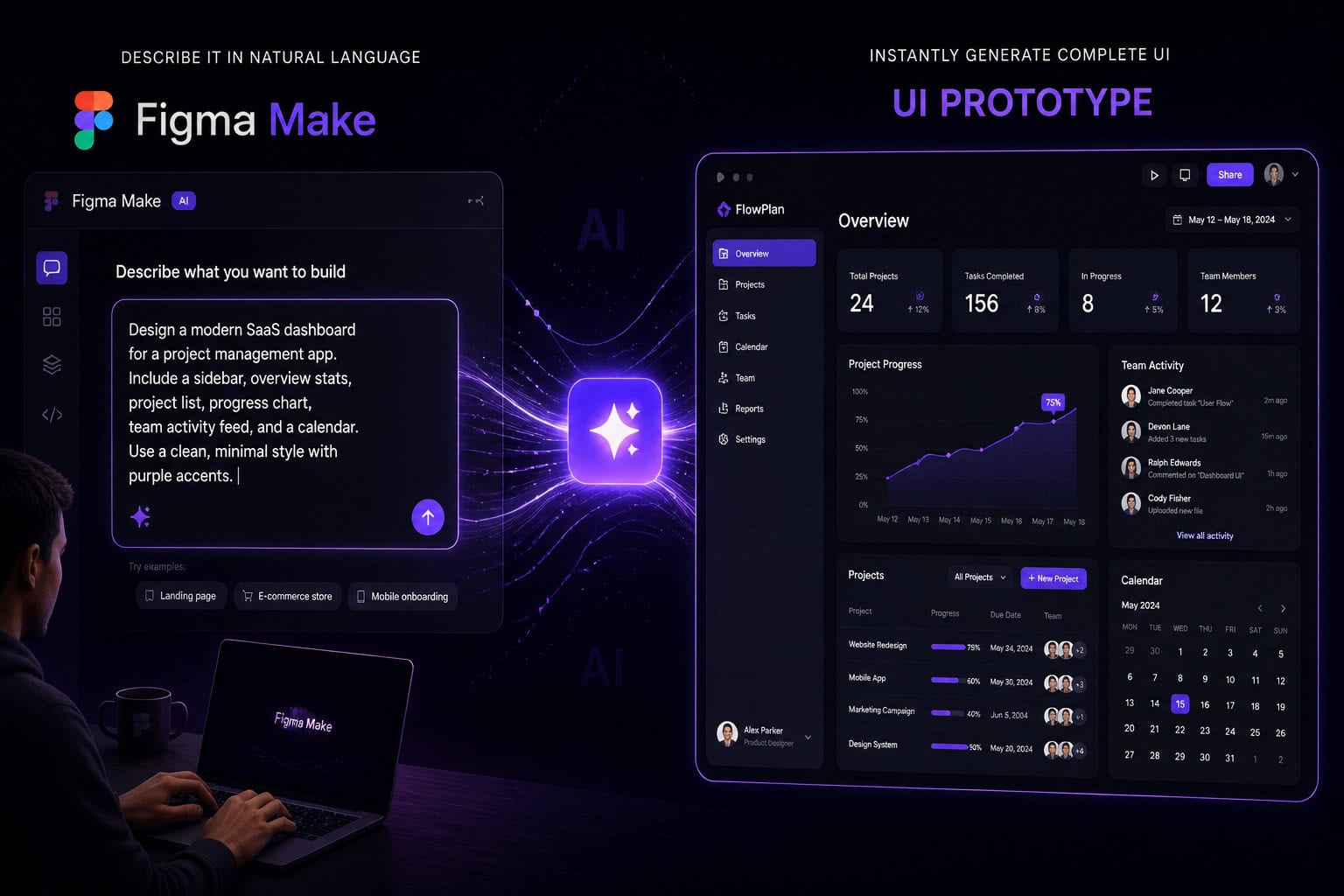
Figma AI is a collection of intelligent features embedded across Figma’s core products — Design, Prototype, Dev Mode, and the newer Figma Sites and Figma Make tools. Rather than being a single button or plugin, it’s woven into the design process at multiple points.
Here’s a breakdown of the main AI capabilities available in 2026:
| Feature | What It Does | Who Benefits Most |
|---|---|---|
| Figma Make | Generates prototypes from text prompts using Claude 3.7 | Designers, product managers |
| Figma Sites | Converts designs to live responsive websites | Web designers, agencies |
| Figma Draw | Advanced vector tools inside Figma | Illustrators, brand designers |
| AI Image Generation | Creates images via OpenAI, Google, or Amazon models | All designers |
| Model Picker | Lets you choose the AI image engine | Designers needing creative control |
| Smarter AI Suggestions | Contextual layout and color recommendations | Beginners and experienced designers |
| MCP Server (Dev Mode) | Feeds component data to AI coding tools | Developers, design engineers |
| AI Layer Renaming | Auto-names and organizes layers | All Figma users |
The core philosophy: Figma positions AI as a workflow enhancement tool rather than a generative creative engine [3]. That means AI handles the tedious parts — naming layers, building click-through interactions, generating boilerplate layouts — while designers retain full creative control.
How Does Figma Make Work, and Is It Actually Useful?
Figma Make is arguably the most significant AI feature Figma has released. It lets you type a natural language description — something like “a mobile onboarding screen with three steps, a progress bar, and a skip button” — and it generates a fully editable prototype with real components, layouts, and interaction logic [1].
It runs on Anthropic’s Claude 3.7 model, which gives it strong reasoning ability for translating design intent into structured UI output.
Measured results from real implementations [3]:
- 60% faster prototyping compared to building manually
- 83% reduction in the number of clicks needed to create basic interactions
- 35% productivity gains for development teams using the output
When Figma Make works best:
- Early-stage ideation when you need a starting point quickly
- Generating multiple layout variations to compare
- Building functional prototypes for stakeholder reviews without full design effort
When it falls short:
- Highly specific brand-compliant designs that need pixel-perfect accuracy from the start
- Complex multi-state interactions that require nuanced logic
- Situations where the prompt is vague — garbage in, garbage out still applies
💡 Pro tip: Treat Figma Make output as a draft, not a final design. The real time savings come from editing a generated prototype rather than building from a blank canvas.
If you want to go deeper on automating your Figma process, our guide on supercharging your design process with Figma AI workflow automation covers practical implementation steps.
Figma AI: The Future of Design Automation and Creative Collaboration — Key Productivity Metrics
The efficiency numbers behind Figma AI are worth examining carefully, because they reveal where the real gains are and where expectations should stay grounded.

According to data from customer implementations analyzed by StayModern AI [3]:
- 60% faster prototyping through Figma Make’s auto-prototyping features
- 83% reduction in click-through creation for basic interactions
- 70% faster file organization via AI-powered layer renaming and automated cleanup
- 35% productivity gains for development teams converting designs to code
- 90% accuracy in component conversion achieved by UI3 beta’s automated design system management
Important context for these numbers: These figures come from specific customer implementations and represent best-case scenarios for teams that have integrated Figma AI into structured workflows. Your results will vary based on team size, design complexity, and how consistently the tools are used.
Where the productivity gains are most reliable:
- Layer naming and file cleanup (consistent, low-skill task that AI handles well)
- Generating first-draft wireframes and prototypes
- Developer handoff via MCP Server, which reduces back-and-forth communication
- Image generation for placeholder content during design reviews
Where gains are less predictable:
- Creative direction and brand-specific design decisions
- Complex design systems with many interdependencies
- Teams with inconsistent Figma file hygiene (AI suggestions work better on organized files)
For teams building or managing a design system, our comprehensive guide to Figma UI kits and design systems explains how to structure your files so AI tools can work more effectively.
How Does Figma AI Change Team Collaboration?
Figma was already built around real-time collaboration — multiple designers editing the same file simultaneously. AI features extend that foundation by making collaboration smarter, not just faster.
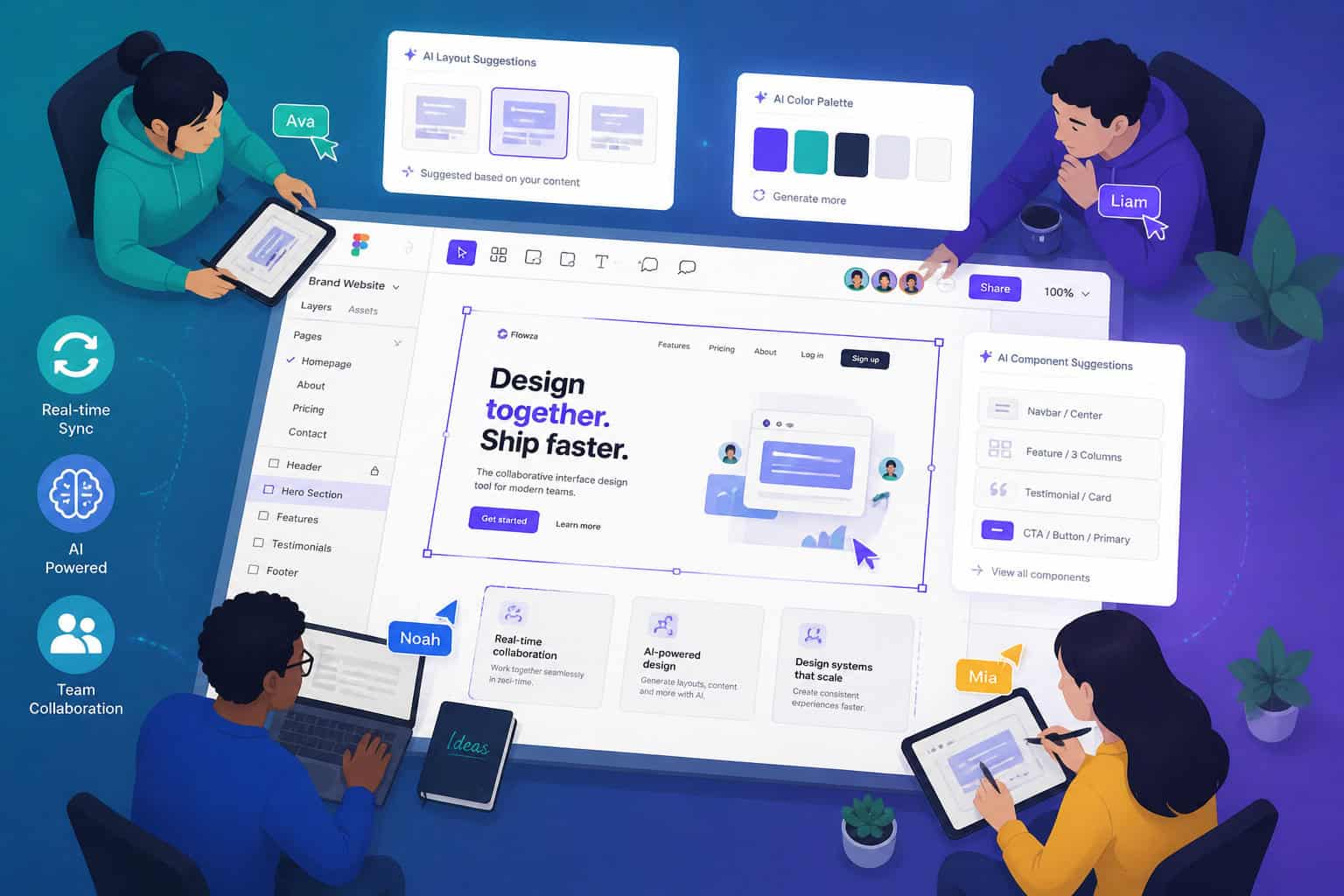
Smarter AI Suggestions provide contextual design recommendations as you build. The system reads your canvas content and offers layout ideas, color palette options, and structural tips based on what’s already there [1]. This is particularly useful for junior designers who benefit from in-context guidance without needing to ask a senior teammate.
MCP Server for Dev Mode (Beta) is the collaboration feature with the biggest long-term impact. It allows AI coding tools — GitHub Copilot, Claude Code, and similar assistants — to read component metadata directly from Figma files [1]. In practice, this means a developer can ask their AI coding assistant “what are the exact spacing values and font styles for this button component?” and get an accurate answer pulled straight from the Figma source file.
Why this matters for teams:
- Reduces the “lost in translation” problem between design and development
- Cuts the number of Slack messages asking “what’s the hex code for this color?”
- Enables developers to generate more accurate code from design specs without manual inspection
Collaboration use cases by role:
- Designers: Use AI Suggestions to explore layout options faster; use Figma Make to generate discussion-ready prototypes before committing to a direction
- Product managers: Use Figma Make to mock up feature ideas without needing a designer’s time for every exploration
- Developers: Use MCP Server to get precise component specs fed directly to their AI coding tools
- Stakeholders: Benefit from faster prototype delivery, meaning more review cycles in less time
For teams working on web projects specifically, our guide on Figma for web design: tools and principles for collaborative projects covers how to structure collaborative workflows effectively.
What Is Figma Sites, and How Does It Fit Into the AI Story?
Figma Sites is a feature that converts Figma designs into live, responsive websites — complete with automatically generated HTML and CSS, animations, and parallax interactions [1].
This is a meaningful shift. Historically, the gap between a Figma design and a live website required a developer to manually translate the design into code, or a tool like Webflow or Framer to bridge the gap. Figma Sites compresses that gap significantly.
What Figma Sites generates automatically:
- Responsive HTML/CSS from your Figma frames
- CSS animations based on prototype transitions
- Parallax scrolling effects
- Basic page structure and layout
What it doesn’t do (yet):
- CMS integration for dynamic content (this was listed as a planned feature for later in 2025, with broader rollout expected in 2026) [1]
- Complex e-commerce or database-driven functionality
- Custom backend logic
Choose Figma Sites if: You’re a designer or small agency building marketing pages, landing pages, or portfolio sites where the design is mostly static and you want to ship without a separate development handoff.
Stick with Figma-to-code workflows if: Your project needs dynamic content, complex interactions, or integration with a CMS or backend system. In those cases, our guide on Figma to code plugins and design-to-development workflows covers the better path.
Figma AI vs. Other AI Design Tools: How Does It Compare?
Figma AI isn’t the only AI-powered design tool available in 2026. Understanding where it fits helps teams make better decisions about their toolstack.

| Criteria | Figma AI | Adobe Firefly (in XD/Illustrator) | Canva AI | Framer AI |
|---|---|---|---|---|
| Primary strength | Prototyping + dev handoff | Image generation + editing | Template-based design | Web publishing |
| Collaboration | Real-time, multi-user | Limited | Team workspaces | Limited |
| Code output | Via Sites + MCP Server | Minimal | None | Direct publish |
| Design system support | Strong (90% component accuracy) [3] | Moderate | Weak | Moderate |
| AI image generation | Multi-model (OpenAI, Google, Amazon) [1] | Firefly only | Integrated | Limited |
| Best for | Product teams, agencies | Creative/marketing teams | Non-designers | Web-focused designers |
Key differentiator: Figma’s Model Picker for AI Images lets designers choose between OpenAI’s GPT-image-1, Google’s Imagen 3, or Amazon Titan V2 [1]. No other mainstream design tool offers this level of AI engine flexibility. This matters because different models have different strengths — GPT-image-1 tends to handle photorealistic product imagery well, while Imagen 3 often performs better for illustrated or stylized visuals.
For a broader look at AI tools in the creative space, our roundup of the best AI graphic design tools for creative workflows covers alternatives worth considering alongside Figma.
If you’re comparing Canva’s AI features specifically, our Canva AI design assistant guide is a useful reference.
What Are the Real Limitations and Risks of Figma AI?
Figma AI is genuinely useful, but it’s worth being direct about where it falls short and what risks teams should manage.
Limitation 1: Output quality depends heavily on prompt quality Figma Make’s prototype generation is only as good as the description you give it. Vague prompts produce generic layouts. Teams need to develop prompt-writing skills — this is a new competency that takes time to build.
Limitation 2: AI suggestions can homogenize design When many designers use the same AI suggestion system, there’s a real risk that designs start to look similar. AI suggestions are trained on existing patterns, so they tend to recommend what’s already common rather than what’s novel.
Limitation 3: MCP Server is still in beta The developer handoff improvements via MCP Server are promising, but the feature is still in beta as of 2026 [1]. Teams building production workflows around it should have fallback processes.
Limitation 4: Data privacy considerations When using AI image generation or Figma Make, design content is processed by third-party AI models (OpenAI, Google, Amazon). Teams working with sensitive client data or under strict NDA agreements need to review Figma’s data processing terms before using these features.
Limitation 5: Learning curve for non-technical designers Features like MCP Server and the technical aspects of Figma Sites are more accessible to designers with some development knowledge. Pure visual designers may need support from a developer or design engineer to get full value.
Common mistake: Teams often try to use Figma AI to replace the design thinking process rather than accelerate it. AI is good at generating options and handling repetitive tasks — it’s not good at deciding which option is right for your users or your brand.
Figma AI: The Future of Design Automation and Creative Collaboration — What’s Coming Next?

Figma’s 2025 AI Report highlighted that design teams increasingly see AI as a core part of their workflow rather than an experimental add-on [6]. That shift in perception is driving faster feature development across the platform.
Trends shaping Figma AI’s direction in 2026 and beyond:
Deeper design system automation: The 90% component conversion accuracy in UI3 beta [3] suggests Figma is moving toward AI that can manage and maintain design systems at scale — automatically flagging inconsistencies, suggesting updates, and applying changes across files.
Tighter design-to-code pipelines: The MCP Server beta is an early signal that Figma wants AI coding tools to treat Figma files as a source of truth. Expect this to mature into more reliable, production-ready code generation.
CMS integration in Figma Sites: Dynamic content support was planned for rollout, which would make Figma Sites competitive with tools like Webflow for content-driven websites.
More AI model options: The multi-model approach for image generation (OpenAI, Google, Amazon) [1] suggests Figma will continue expanding the AI engines available to designers rather than locking into a single provider.
AI-assisted accessibility checking: This is an area where AI can add significant value — automatically flagging contrast issues, missing alt text, and ARIA labeling problems before designs reach development.
The broader picture: Figma is betting that the future of design is a tighter loop between design intent, AI execution, and code output. The tools they’re building in 2026 are all pointing in that direction.
For designers looking to stay ahead of these changes, our Figma for beginners guide covering UI/UX design principles and workflows provides the foundational knowledge that makes AI features more effective to use.
Frequently Asked Questions About Figma AI
Q: Is Figma AI available on all Figma plans? Some AI features are available on all plans, but advanced features like Figma Make and Figma Sites may require a paid Professional or Organization plan. Check Figma’s current pricing page for the latest feature availability by tier.
Q: Does Figma AI replace the need for a designer? No. Figma AI handles repetitive and generative tasks — it doesn’t make creative decisions, understand brand nuance, or advocate for user needs. It’s a tool that makes designers faster, not a substitute for design expertise.
Q: Can I use Figma Make without knowing how to code? Yes. Figma Make generates prototypes from natural language descriptions inside Figma’s design environment. No coding knowledge is required to generate or edit the output.
Q: Is the AI image generation in Figma safe for commercial use? Figma’s AI-generated images through the Model Picker are generally intended for use within design workflows. For commercial publication, review the terms of service for each underlying model (OpenAI, Google, Amazon) to confirm licensing rights for your specific use case.
Q: How accurate is Figma’s MCP Server for developer handoff? The MCP Server is currently in beta [1]. It reads component metadata from Figma files and feeds it to AI coding tools. Accuracy depends on how well-structured and named your Figma components are — well-organized design systems produce significantly better results.
Q: How does Figma AI compare to using a Figma-to-code plugin? Figma AI features like MCP Server and Figma Sites work at the platform level and don’t require separate plugins. Traditional Figma-to-code plugins (like Anima or Locofy) offer more customization for specific frameworks. For a detailed comparison, see our guide on Figma to code plugins and design-to-development workflows.
Q: Will Figma AI work with my existing design system? Yes, and it works best with well-organized design systems. The UI3 beta’s component conversion achieves approximately 90% accuracy [3], but that accuracy improves when components are properly named, structured, and documented in your Figma file.
Q: What’s the difference between Figma Draw and Adobe Illustrator? Figma Draw adds vector illustration capabilities (brushes, textured strokes, text-on-path) directly inside Figma [1]. It’s not a full Illustrator replacement for complex illustration work, but it eliminates the need to switch tools for most common vector tasks during the design process.
Q: Can product managers use Figma AI without design training? Yes, particularly Figma Make. Product managers can type a description of a feature and generate a rough prototype for discussion — without needing to know Figma’s component system or design principles. The output will be rough, but useful for alignment conversations.
Q: How does Figma AI handle data privacy? When AI features process your design content, data may be sent to third-party AI providers (OpenAI, Google, Amazon). Teams handling sensitive client data should review Figma’s AI data processing policy and their enterprise data agreements before enabling these features.
Conclusion: How to Start Using Figma AI Effectively in 2026
Figma AI is not a single feature — it’s a growing layer of intelligence across the entire Figma platform. The teams getting the most value from it in 2026 are the ones treating it as a workflow accelerator rather than a creative replacement.
Actionable next steps based on your role:
For designers:
- Start with AI Layer Renaming to clean up existing files and see immediate time savings
- Use Figma Make for early-stage ideation — generate 3-4 layout options from a prompt before committing to one direction
- Experiment with the Model Picker to find which AI image engine fits your visual style
For developers:
- Set up MCP Server for Dev Mode (beta) and test it with your AI coding tool of choice
- Work with your design team to ensure Figma components are properly named — this directly improves the quality of AI-generated code specs
For product managers:
- Use Figma Make to create rough feature mockups before involving a designer — this saves design time for the work that actually needs design expertise
- Treat AI-generated prototypes as conversation starters, not finished specs
For agencies and freelancers:
- Evaluate Figma Sites for client projects that need fast turnaround on marketing pages
- Build prompt templates for Figma Make that match your common project types — this compounds your time savings across projects
The core principle to remember: Figma AI works best when you bring clear intent to it. The clearer your design direction, the more useful the AI output becomes. Start with one feature, measure the time savings, and expand from there.
References
[1] How Figma’s New AI Tools Are Changing The Future Of Web Design – https://www.composite.global/news/how-figmas-new-ai-tools-are-changing-the-future-of-web-design
[3] Figma AI Solutions – Detailed – https://www.staymodern.ai/solutions/figma/detailed
[6] Figma 2025 AI Report Perspectives – https://www.figma.com/blog/figma-2025-ai-report-perspectives/
[7] Figma AI Design Systems Generator – https://www.figma.com/solutions/ai-design-systems-generator/
[10] Automating Design Systems With AI – https://www.parallelhq.com/blog/automating-design-systems-with-ai