Last updated: May 7, 2026
Quick Answer: ChatGPT automation lets individuals and teams connect AI-powered text generation to real business tools — like email, spreadsheets, CRMs, and project management apps — without writing a single line of code. Using platforms like Zapier, Make.com, or Microsoft Power Automate, you can build multi-step workflows that save hours each week, reduce manual errors, and free your team for higher-value work.
Key Takeaways
- 78% of businesses now use AI in at least one business function, making no-code ChatGPT automation a mainstream skill worth mastering [3]
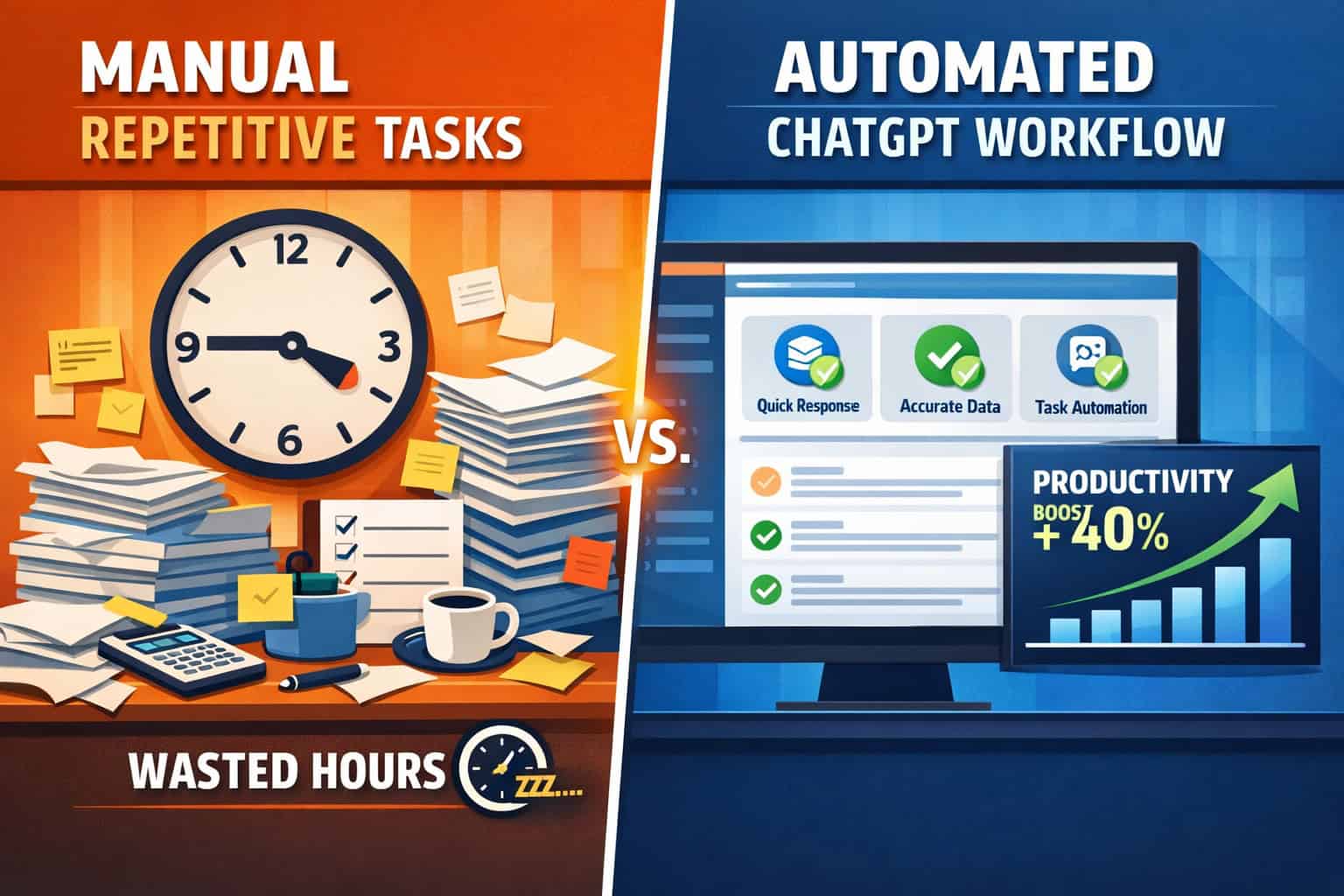
- Accenture research suggests AI tools like ChatGPT can boost productivity by up to 40% when workflows are properly customized [2]
- Three core integration approaches exist: Zapier’s native ChatGPT action, OpenAI’s API Assistants, and ChatGPT’s own Agent Builder [1]
- Prompt chaining — linking multiple AI prompts in sequence — enables sophisticated multi-step automation using only natural language [10]
- Customer support teams using AI automation gain up to 70% more time for complex cases [3]
- Contextual training and domain-specific prompts are the single biggest factor separating useful automations from generic ones [2]
- Human oversight is non-negotiable: always build a review step into any workflow that produces customer-facing output [2]
- Thomson Reuters projects AI automation will save workers up to 12 hours per week by 2029 [3]

What Is ChatGPT Automation and Who Is It For?
ChatGPT automation means connecting OpenAI’s language model to other apps and services so it can perform tasks automatically — drafting emails, summarizing documents, classifying data, or responding to customer messages — without you manually typing each prompt.
Who benefits most:
- Small business owners who handle repetitive writing tasks alone (newsletters, product descriptions, support replies)
- Marketing teams that need consistent content at scale without a large writing staff
- Operations managers looking to reduce manual data entry and reporting time
- Developers and freelancers who want to add AI capabilities to client projects without building from scratch
- Customer support teams handling high volumes of routine inquiries
Who it’s NOT ideal for (yet):
- Workflows requiring real-time legal or medical judgment without human review
- Tasks where brand voice is so nuanced that generic AI output creates more editing work than it saves
- Organizations without any existing digital tools — you need at least one connected app to build a workflow
“The businesses seeing the biggest returns aren’t the ones using ChatGPT the most — they’re the ones using it in the right places.”
What No-Code Tools Can Connect ChatGPT to Your Existing Stack?
No-code integration platforms act as bridges between ChatGPT and the apps you already use. You don’t need to understand APIs or write code — you just configure triggers and actions through a visual interface.
The four main platforms in 2026:
| Platform | Best For | ChatGPT Integration Method | Free Tier? |
|---|---|---|---|
| Zapier | Broad app ecosystem (6,000+ apps) | Native ChatGPT action + OpenAI API | Yes (limited tasks) |
| Make.com | Complex multi-branch workflows | OpenAI module | Yes (1,000 ops/month) |
| Microsoft Power Automate | Microsoft 365 users | Direct ChatGPT connector | With M365 license |
| ChatGPT Agent Builder | Self-contained ChatGPT automations | Built-in (no third-party needed) | Yes (ChatGPT Plus) |
Zapier is the most accessible starting point for most people. It connects ChatGPT to Google Sheets, Gmail, Slack, Notion, HubSpot, and hundreds more apps. For example, you can set a Zap so that every new row added to a Google Sheet automatically triggers ChatGPT to write a product description and paste it into a Google Doc [1].
Make.com suits teams that need conditional logic — “if the sentiment is negative, route to a human; if positive, send the automated reply.” Its visual canvas makes branching logic easier to see and manage [6].
Power Automate is the natural choice if your organization runs on Microsoft 365. The integration is direct and the connection protocols are well-established [3].
ChatGPT’s Agent Builder (released in 2026) is worth special attention. It includes a visual interface with logic blocks (if/else conditions, loops, user approval steps) and direct connections to Google Calendar, Gmail, and Google Docs — all within ChatGPT itself, no third-party platform required [5].
For a broader look at no-code tools and platforms, the no-code archives on WebAiStack cover a wide range of options beyond AI automation.
How Do You Build Your First ChatGPT Automation Workflow?
Start with one specific, repetitive task. The biggest mistake beginners make is trying to automate an entire department’s workflow on day one.
Step-by-step: Build a simple email-drafting automation with Zapier
- Choose your trigger — Pick the event that starts the workflow. Example: “A new row is added to a Google Sheet.”
- Define the input data — Identify which fields ChatGPT needs. Example: customer name, product purchased, issue description.
- Add a ChatGPT action — In Zapier, select “ChatGPT” as the action app. Choose “Send Prompt.” Write your prompt using the data fields as variables: “Write a friendly support reply to [customer name] about their issue with [product]. Keep it under 100 words.”
- Add an output action — Send the generated text to Gmail as a draft, or post it to a Slack channel for review.
- Test with real data — Run the Zap with a sample row. Check the output for accuracy and tone.
- Add a human review step — For customer-facing content, route the draft to a team member before it sends.
- Activate and monitor — Turn the Zap on and check the first 10–20 runs manually before trusting it fully.
Common mistake: Writing a vague prompt like “Write a reply.” Always include: the audience, the desired tone, the word count limit, and any specific information to include or avoid.
What Is Prompt Chaining and Why Does It Matter for Automation?
Prompt chaining is the practice of feeding the output of one ChatGPT prompt as the input to the next, creating a sequence of AI reasoning steps that together accomplish a complex task [10].
Think of it like an assembly line. Each station does one specific job, and the product moves forward only when that step is complete.
Example: Automated content brief workflow
- Step 1 prompt: “Given this keyword: [keyword], list 5 key questions a reader would want answered.”
- Step 2 prompt: “Using these questions: [output from Step 1], write a 200-word content brief with a suggested headline and three supporting points.”
- Step 3 prompt: “Review this brief: [output from Step 2]. Flag any claims that need a cited source.”
Each step is simple. Together, they produce a research-ready content brief in under two minutes — no plugins, no APIs, no code [10].
Why this matters for no-code users: Prompt chaining means you can build sophisticated logic using only natural language. Zapier and Make.com both support multi-step workflows where each ChatGPT action feeds the next.
For teams already using AI for content work, pairing prompt chaining with AI-powered content generation tools creates a scalable production system.
What Are the Most Practical Real-World Use Cases?
The most effective ChatGPT automations solve problems that are both high-frequency and low-complexity — tasks that happen dozens of times a day but don’t require deep human judgment.
Top use cases by department:
Customer Support
- Auto-draft responses to common ticket types (refund requests, shipping questions, password resets)
- Classify incoming tickets by urgency and route them to the right team
- Summarize long customer complaint threads into a 3-line brief for agents
- AI tools give support agents up to 70% more time for complex cases when routine queries are handled automatically [3]
Marketing & Content
- Generate first drafts of social media captions from a product name and key benefit
- Summarize blog posts into email newsletter intros
- Write A/B test variations for ad copy
- See also: AI-powered content optimization guide for scaling content workflows
Operations & Admin
- Summarize meeting transcripts in under 30 seconds and send the summary to Slack [6]
- Extract action items from meeting notes and add them to a project management tool
- Auto-generate weekly status reports from a data spreadsheet
Sales
- Personalize outreach email templates using CRM data fields
- Summarize a prospect’s LinkedIn profile or website before a call
- Draft follow-up emails triggered by CRM stage changes
WordPress & Website Management
- Auto-generate meta descriptions for new posts
- Draft FAQ sections from product page content
- For WordPress-specific AI automation, the 12 best AI plugins for WordPress covers tools that work alongside ChatGPT workflows
How Do You Train ChatGPT to Understand Your Business Context?
Generic ChatGPT outputs often miss the mark because the model doesn’t know your industry, your brand voice, or your customers. Contextual training — giving the model the right background in your prompts — is the most important factor in getting useful results [2].
Four ways to add context:
System prompts: In API-based workflows, a system prompt sets the AI’s “role” before every interaction. Example: “You are a customer support agent for [Brand], a B2B SaaS company. Our tone is professional but friendly. Never promise refunds without manager approval.”
Few-shot examples: Include 2–3 examples of ideal outputs directly in your prompt. The model learns your format and tone from those examples far better than from a written description alone.
Domain vocabulary: List key terms, product names, and jargon the model should use correctly. Example: “Our product is called ‘FlowDesk,’ not ‘flow desk’ or ‘FlowBoard.'”
Negative instructions: Tell the model what to avoid. Example: “Do not mention competitors. Do not use phrases like ‘I hope this email finds you well.'”
Edge case to watch: If your industry uses common words in unusual ways (e.g., “ticket” means something different in IT support vs. event management), always define those terms explicitly in the system prompt. Without this, ChatGPT will default to the most common usage and produce off-target outputs [2].
What Are the Biggest Mistakes to Avoid in ChatGPT Workflow Automation?
Most failed automations share the same root causes. Knowing them in advance saves hours of troubleshooting.
Mistake 1: Automating before you’ve done the task manually If you don’t fully understand a task yourself, you can’t write a good prompt for it. Always do the task manually 5–10 times first, then document the exact steps before automating.
Mistake 2: Skipping human review on customer-facing outputs Human oversight paired with automation minimizes errors and builds trust in AI-driven systems [2]. A single bad automated reply to a customer can cost more than the hours saved by the automation.
Mistake 3: One giant prompt instead of chained steps Asking ChatGPT to “research, summarize, rewrite, and format” all in one prompt produces mediocre results. Break complex tasks into smaller, sequential prompts.
Mistake 4: Not testing with edge-case inputs Your workflow will eventually receive unusual inputs — empty fields, non-English text, unusually long content. Test these scenarios before going live.
Mistake 5: Ignoring rate limits and costs OpenAI’s API charges per token. A workflow that runs thousands of times a day can generate unexpected costs. Set usage caps and monitor spend from day one.
Mistake 6: No version control on prompts When a prompt stops working well, you need to know what changed. Keep a simple log of prompt versions with dates and notes on what was modified.
How Does ChatGPT’s Agent Builder Change the No-Code Automation Landscape?
ChatGPT’s Agent Builder, updated in 2026, brings a significant shift: you can now build multi-step automations entirely within ChatGPT, without needing a separate platform like Zapier or Make [5].
What it includes:
- Visual drag-and-drop interface for building logic flows
- If/else conditional blocks and loop structures
- User approval steps (a human can pause the workflow to review before proceeding)
- Direct connections to Google Calendar, Gmail, Google Docs, and other external tools [5]
When to use Agent Builder vs. Zapier/Make:
- Choose Agent Builder if: Your automation lives mostly within Google Workspace or ChatGPT itself, and you want the simplest possible setup
- Choose Zapier if: You need to connect to apps outside Google’s ecosystem (Salesforce, HubSpot, Shopify, etc.)
- Choose Make.com if: Your workflow has complex conditional branching or you need to process large data sets
The Agent Builder is particularly useful for individual professionals who want to automate personal workflows — scheduling, research summaries, email drafts — without a team or IT support.
For teams building web-based tools alongside their automation stack, building professional sites without code pairs well with ChatGPT automation for a fully no-code digital operation.

How Do You Measure Whether Your ChatGPT Automation Is Actually Working?
An automation that runs without errors isn’t necessarily a successful one. You need to measure whether it’s producing the outcomes you built it for.
Key metrics to track:
| Metric | What It Measures | How to Track |
|---|---|---|
| Time saved per task | Hours recovered vs. manual process | Time-log comparison over 2 weeks |
| Output accuracy rate | % of AI outputs used without major edits | Manual review log |
| Error rate | % of workflow runs that fail or produce bad output | Platform error logs |
| Cost per output | API spend divided by number of outputs | OpenAI usage dashboard |
| Team adoption | Are people actually using the automation? | Workflow run counts over time |
Set a 30-day review. In the first month, review 100% of outputs manually. In month two, spot-check 20%. By month three, you should have enough data to know which output types are reliable and which need more human oversight.
Thomson Reuters projects that well-implemented AI automation will save workers up to 12 hours per week by 2029 [3]. But that number assumes the automation is producing quality outputs — not just running.
For teams also managing automated content publishing, auto-sharing WordPress blog posts to social media is a natural extension of a ChatGPT content automation workflow.
Frequently Asked Questions
Q: Do I need an OpenAI API key to use ChatGPT automation? Not always. Zapier’s native ChatGPT action works without an API key for basic use. However, API access gives you more control over the model, system prompts, and cost. For advanced workflows, an API key is recommended.
Q: How much does ChatGPT automation cost per month? Costs vary widely. Zapier’s free tier covers basic testing. A typical small business setup — Zapier Starter ($19.99/month) plus OpenAI API usage ($5–$20/month depending on volume) — runs $25–$40/month. Enterprise setups with high task volumes can reach $200+/month.
Q: Is my data safe when using ChatGPT in automated workflows? OpenAI’s API does not use API inputs to train models by default (as of their current data usage policy). However, data still passes through OpenAI’s servers. For sensitive data (PII, financial records, health information), review OpenAI’s data processing agreement and consider on-premise or private deployment options.
Q: Can ChatGPT automation replace human customer support agents? No — and it shouldn’t try to. The most effective model is AI handling routine, high-volume queries (FAQs, order status, password resets) while humans handle complex, sensitive, or high-value interactions. AI tools give support agents up to 70% more time for complex cases [3], which is the real benefit.
Q: What’s the difference between ChatGPT automation and a chatbot? A chatbot is a front-end interface that converses with users in real time. ChatGPT automation refers to background workflows that trigger, process, and output text without necessarily involving a live conversation. The two can work together — a chatbot can be the trigger for a broader automation workflow.
Q: How long does it take to build a first ChatGPT automation? A simple single-step workflow (trigger → ChatGPT → output) takes 30–60 minutes to build and test on Zapier or Make.com for a first-time user. A multi-step workflow with conditional logic typically takes 2–4 hours including testing.
Q: Can I use ChatGPT automation for multilingual content? Yes. ChatGPT handles over 50 languages well. Specify the target language in your prompt: “Respond in French.” For high-stakes multilingual output, always have a native speaker review the first 20–30 outputs before trusting the automation fully.
Q: What happens when the ChatGPT API goes down? Your automation will fail silently or throw an error, depending on how your platform handles it. Always set up error notifications (Zapier and Make.com both support this) so you know immediately when a workflow fails. For critical workflows, add a fallback step that notifies a human.
Q: Is prompt chaining the same as using ChatGPT Agents? They’re related but different. Prompt chaining is a technique — feeding outputs from one prompt into the next. ChatGPT Agents are a built-in feature that can autonomously decide which tools to use and in what order to complete a goal. Prompt chaining gives you more control; Agents give you more autonomy [10][5].
Q: How do I keep my prompts consistent across a team? Store your master prompts in a shared Google Doc or Notion page with version history enabled. When prompts change, update the central document and notify the team. Some teams use a dedicated prompt library tool like PromptLayer or a simple spreadsheet.
Conclusion: Your Next Steps for No-Code ChatGPT Automation
Mastering ChatGPT Automation: A Comprehensive Guide to No-Code Workflow Integration isn’t about learning to code or becoming an AI expert. It’s about identifying the repetitive, text-heavy tasks in your work and systematically removing yourself from the loop.
Start here — your 5-step action plan:
- Pick one task you do manually at least 5 times a week that involves writing or summarizing text
- Choose a platform based on your existing tools: Power Automate for Microsoft shops, Agent Builder for Google Workspace simplicity, Zapier for mixed stacks
- Write a specific prompt that includes role, audience, tone, length, and any constraints — test it manually in ChatGPT before building the automation
- Build the simplest version first — one trigger, one ChatGPT step, one output
- Add a human review step and run the workflow for two weeks before removing oversight
The productivity gains are real and well-documented. But the teams that see the biggest returns are the ones who start small, measure carefully, and expand only what works.
For more on building AI-powered digital workflows, explore the automation resources on WebAiStack and the AI tools and guides archive for practical next steps.
References
[1] Watch – https://www.youtube.com/watch?v=CBMePXigyrU [2] Business Custom Chatgpt Workflows – https://pollthepeople.app/business-custom-chatgpt-workflows/ [3] Chatgpt Automation – https://tripleten.com/blog/posts/chatgpt-automation [4] Chatgpt Workflow Builder – https://embedworkflow.com/features/chatgpt-workflow-builder/ [5] Watch – https://www.youtube.com/watch?v=YlqXKDP1c5k [6] No Code Automation – https://www.make.com/en/blog/no-code-automation [10] Watch – https://www.youtube.com/watch?v=rG12szeKYuw